

Please note that MFA is mandatory: you will not be able to access any bronID services without an active MFA method on your account.
Setting up multi-factor authentication (MFA) is an important step in securing your bronID account. With MFA, you'll need to provide two pieces of information to access your account, making it much harder for anyone to gain unauthorised access.
bronID supports two methods for MFA:
- Via SMS: receiving a verification code on your mobile phone.
- Via an Authenticator App (TOTP): generating time-based one-time codes using an app such as Google Authenticator, Authy, or Microsoft Authenticator.
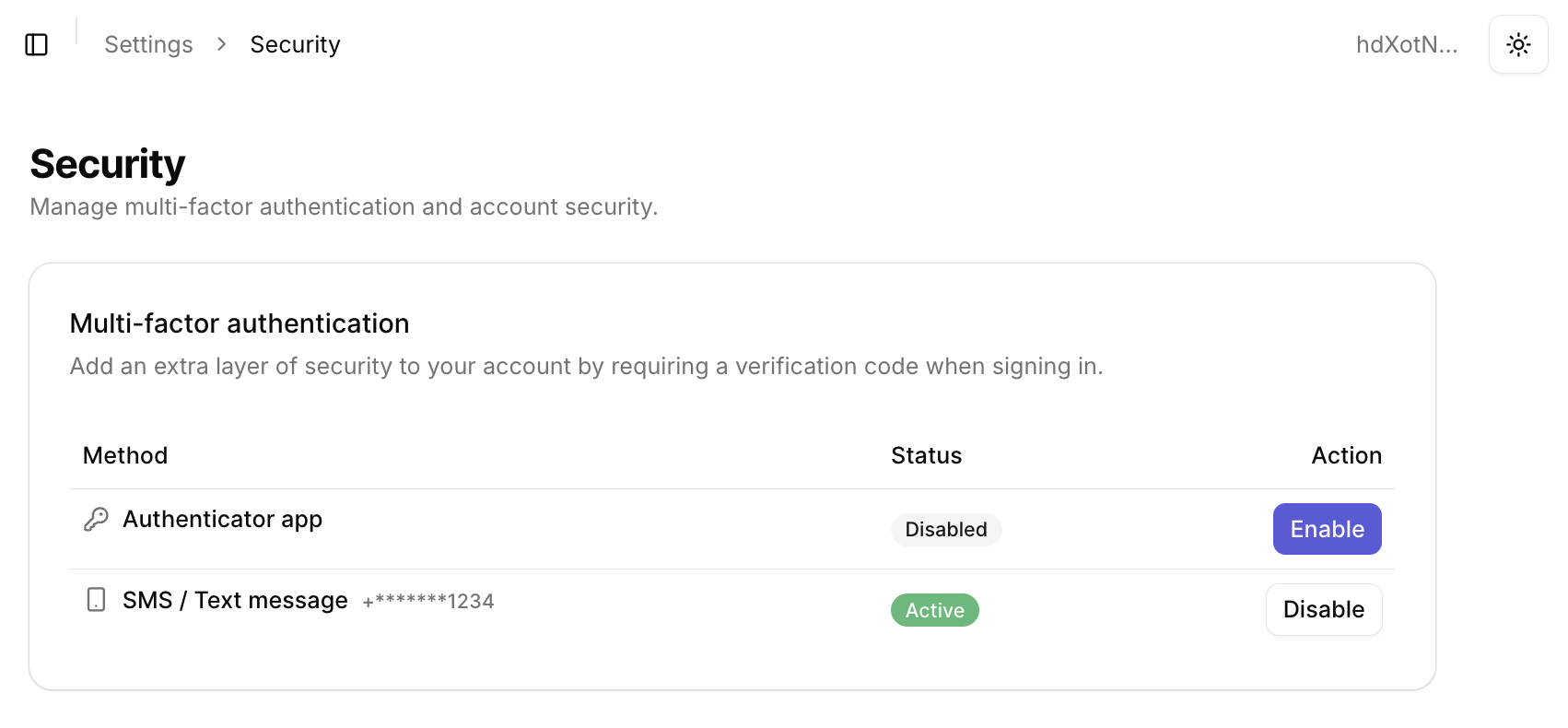
Both methods are managed from the Security page, which displays each method along with its current status (Active or Disabled) and an action button to enable or disable it.
Method 1: Set up MFA using SMS
To set up MFA in bronID using your phone number:
- Log in to your bronID account and select Settings from the left-hand side menu.
- Under Settings, select Account, then click on Security.
- In the Multi-factor authentication section, locate the SMS / Text message row and click Enable in the Action column.
- Enter your bronID username and password when prompted and click Confirm.
- Select your country code from the dropdown menu, enter your mobile phone number, and click Send authentication code.
- Enter the 6-digit code you receive via SMS in the field labelled "Verify the code sent to your phone."
- Click Save to complete the MFA setup.
Important: The phone number you use must be your personal phone number. Synthetic and generic phone numbers (such as virtual or shared numbers) are detected by bronID, and MFA usually cannot be set up with them.
Once enabled, the status of the SMS / Text message method will change to Active, and your registered phone number will be displayed in masked format (e.g. +*******1234).
Logging in with SMS MFA
Once set up, each time you log in to your bronID account, you'll be prompted to enter the unique code sent to your phone via SMS. This provides an extra layer of protection against unauthorised access.
Method 2: Set up MFA using an Authenticator App (TOTP)
To set up MFA in bronID using an authenticator app:
- Log in to your bronID account and select Settings from the left-hand side menu.
- Under Settings, select Account, then click on Security.
- In the Multi-factor authentication section, locate the Authenticator app row and click Enable in the Action column.
- Enter your bronID username and password when prompted and click Confirm.
- A button labelled Generate QR code will appear. Click this button to generate your unique QR code.
- A QR code will then appear on your screen.
- Open your preferred authenticator app (Google Authenticator, Authy, Microsoft Authenticator, etc.) and scan the QR code.
- The app will generate a 6-digit time-based code that changes every 30 seconds.
- Enter this 6-digit code into the field labelled "Verify code from Auth App" in bronID.
- Click Save to complete the setup.
Once enabled, the status of the Authenticator app method will change to Active.
Logging in with Authenticator App MFA
Once configured, each time you log in to your bronID account, you'll be prompted to open your authenticator app and enter the latest 6-digit code displayed. This method doesn't rely on SMS delivery and works even when your phone has no network coverage.
Managing and Changing Your MFA Method
You can disable or change an existing MFA method at any time. The Multi-factor authentication section shows the current status of each method, so you can see at a glance which methods are Active.
To disable an MFA method:
- From the left-hand side menu, go to Settings, then Account, then Security.
- In the Multi-factor authentication section, locate the relevant row (SMS / Text message or Authenticator app) and click Disable in the Action column.
- Enter your bronID username and password when prompted and click Confirm.
- Enter the current MFA code from your existing method (either SMS or Authenticator App).
- Once verified, you can disable the existing MFA and/or set up a new one, for example, change your phone number or generate a new QR code.
Note: You must always have at least one active MFA method enabled to access the bronID platform. Disabling all MFA options is not permitted.
Priority of MFA Methods
If both the SMS and Authenticator App methods are enabled on your account, bronID will always prioritise the Authenticator App (TOTP) as the primary method. This means that when logging in, bronID will request the 6-digit code from your authenticator app instead of sending a code via SMS.


