

If you have received a bronID verification link, you have been invited to verify the identity of your organisation. The form consists of three steps, shown at the top of the page: 01 Intro, 02 ID Form, and 03 Summary.
Step 1: Intro
Before you begin, please ensure you have on hand:
- general incorporation information about the organisation; and
- relevant documents such as incorporation certificates, trust deeds, etc., where applicable.
By clicking Start verification, you consent to the use of your information and documents for identity verification. See bronID's Privacy Policy for details.

Step 2: ID Form
1. Select the entity type. In the Select entity type section, choose the Country and the Entity Type. bronID supports over 200 countries, and the available entity types depend on the country selected. For example, for Australia, the entity types include Company, Sole Trader, Trust, Partnership, Government Body, Association, Cooperative, and Indigenous Corporation. The form fields will adjust depending on the entity type selected.
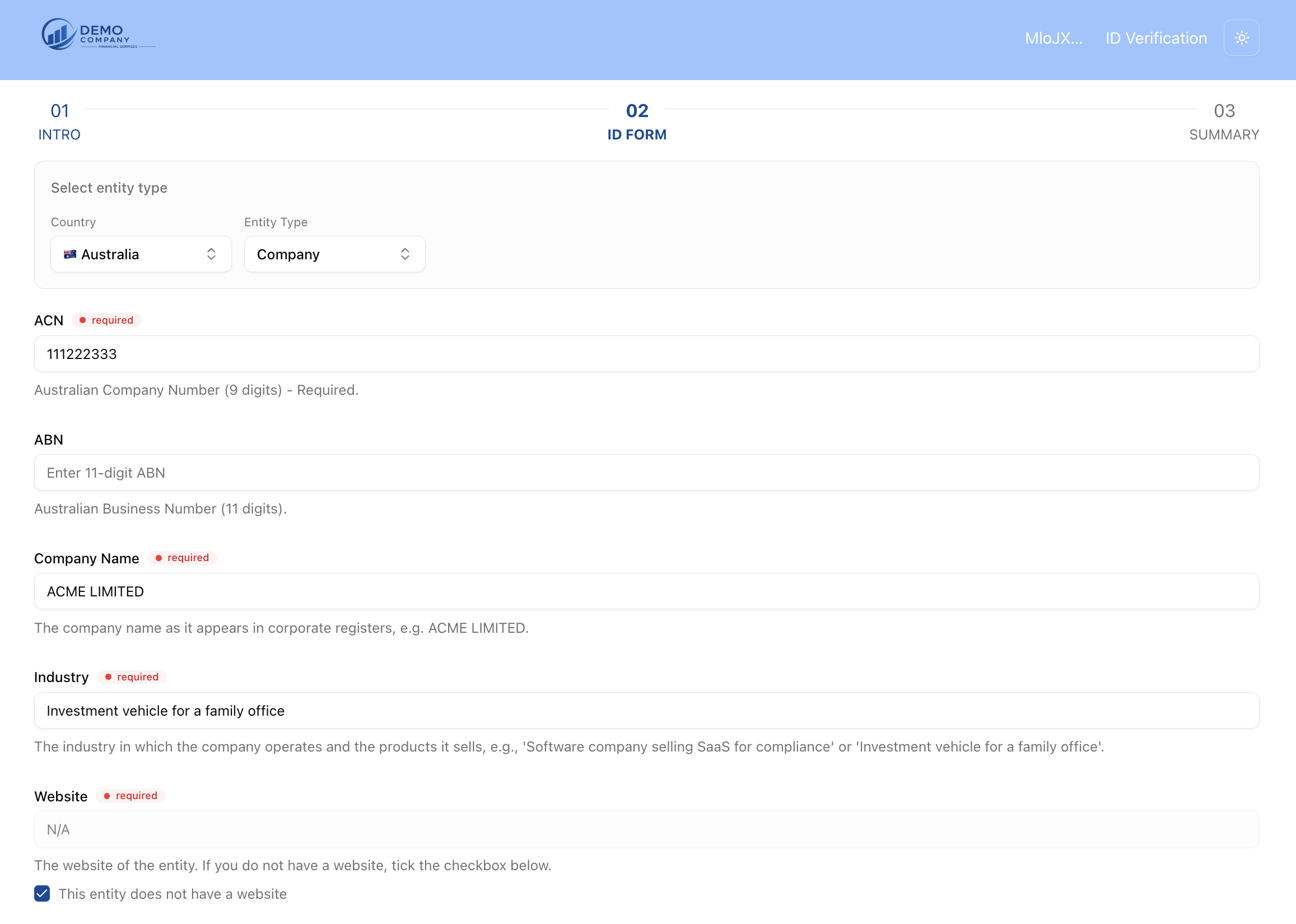
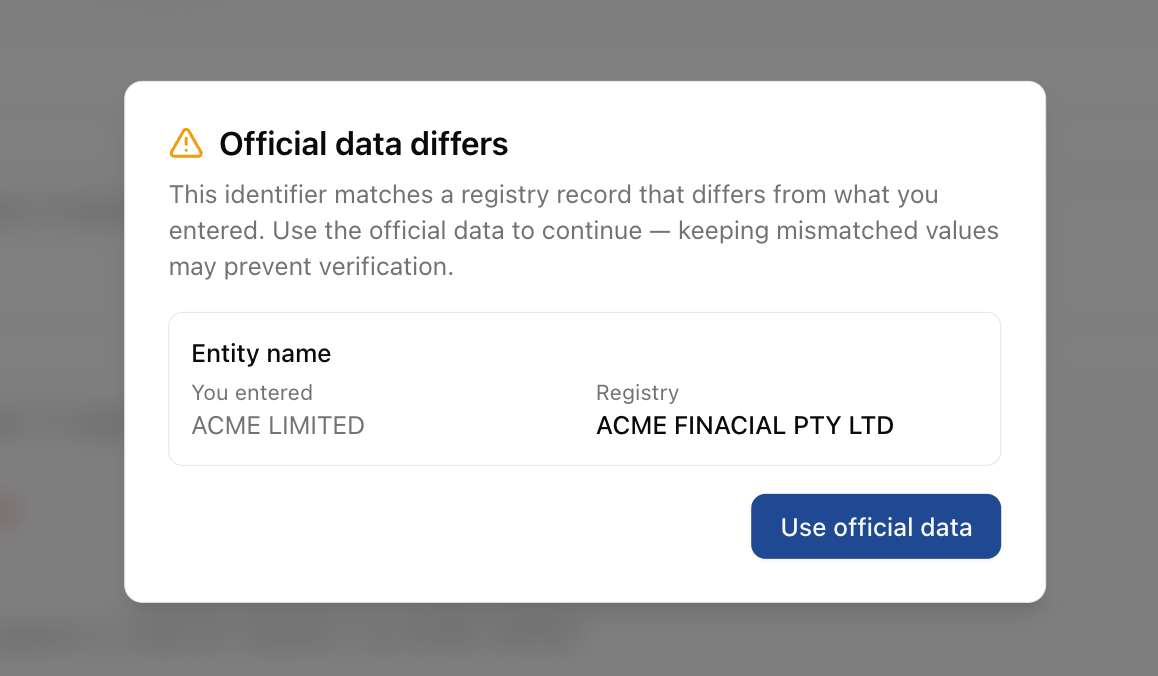
2. Fill out the required fields. The required fields are marked, and helper text under each field explains what to enter. For each entity type, you must enter the unique entity number (e.g. ABN, ACN, ARSN, or as applicable), the entity name (e.g. a company name, a trust name, or an association name), the industry and website, as well as an address where applicable. Please note that the form validates your entries against official registry data as you go. If an identifier (e.g. an ACN) matches a registry record that differs from what you entered, an Official data differs notice will appear, showing the value you entered alongside the official registry value (e.g. Entity name: you entered "ACME FINACIAL PTY LTD", registry shows "ACME LIMITED"). Click Use official data to continue with the registry value, as keeping mismatched values may prevent verification and result in a rejection.
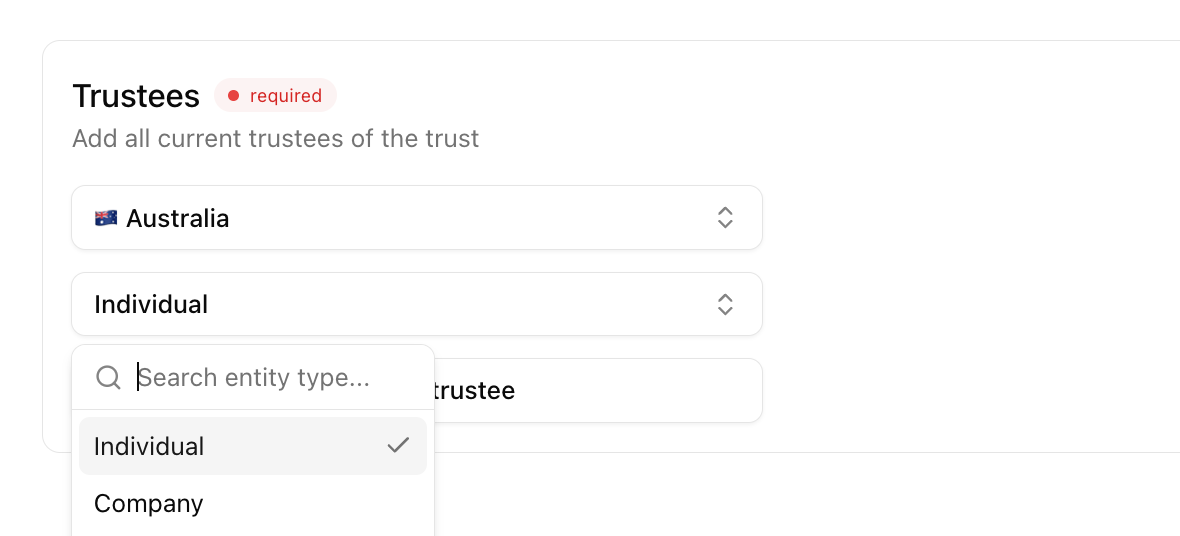
3. For trusts, add the Trustees. You must add all current trustees of the trust, selecting the country and the entity type for each trustee. Make sure to enter a company if the trustee is a company, and individuals if the trustees are individuals. The entered trustees must accurately reflect what is written in the supporting documentation (e.g. the Trust Deed).
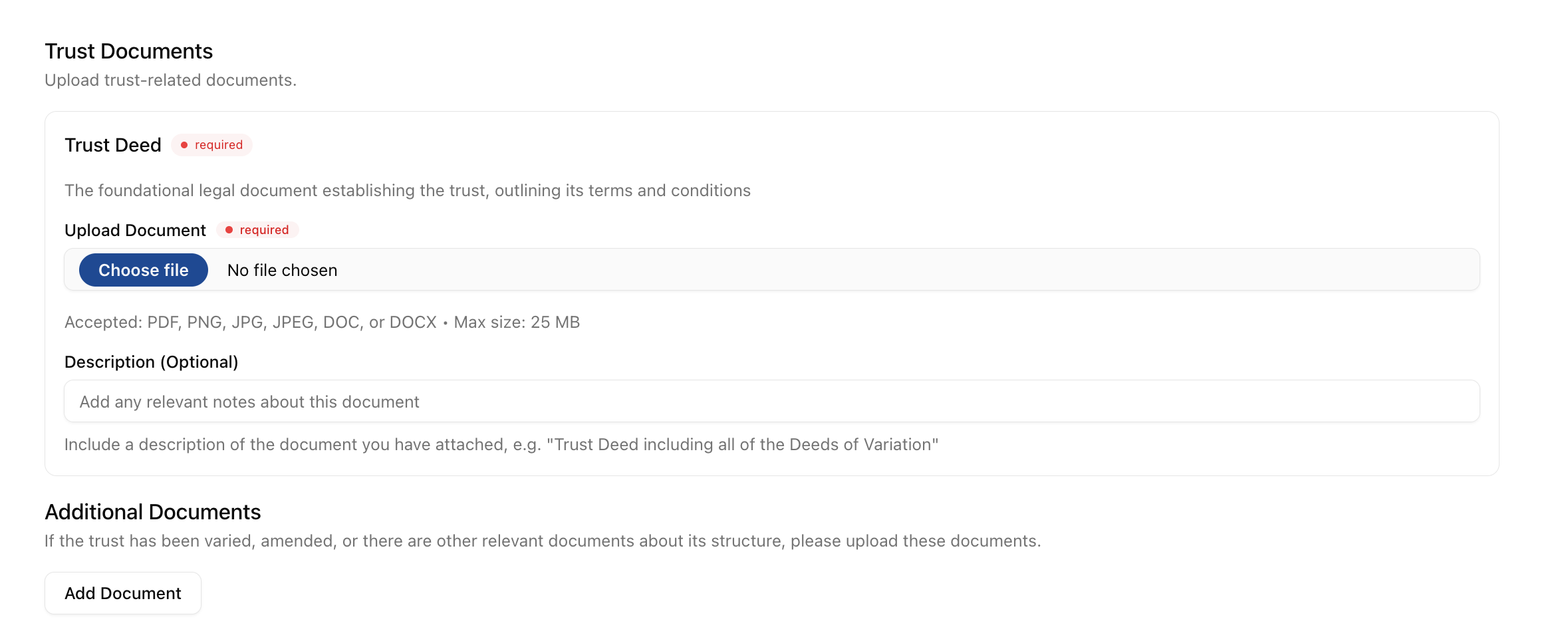
4. For trusts, upload the Trust Documents. The Trust Deed, the foundational legal document establishing the trust, is always required (accepted formats: PDF, PNG, JPG, JPEG, DOC, or DOCX, up to 25 MB). You can add an optional description of the document, e.g. "Trust Deed including all of the Deeds of Variation". If the trust has been varied, amended, or there are other relevant documents about its structure, upload these under Additional Documents by clicking Add Document and selecting the document type, such as a Deed of Variation for Change of Trustee, Deed of Variation for Change of Trust Name, List of Beneficiaries, Unit Register, Disclosure Certificate for Beneficial Ownership, or Other Document.
5. Fill out the Applicant section. The applicant is the person who is acting on behalf of the entity, i.e. the person who is opening the account and will be the contact point for managing the account. This can be either one of the entity's stakeholders (e.g. a director or trustee) or an external person such as a financial advisor, accountant, or employee. Enter your personal information as the person filling out the form:
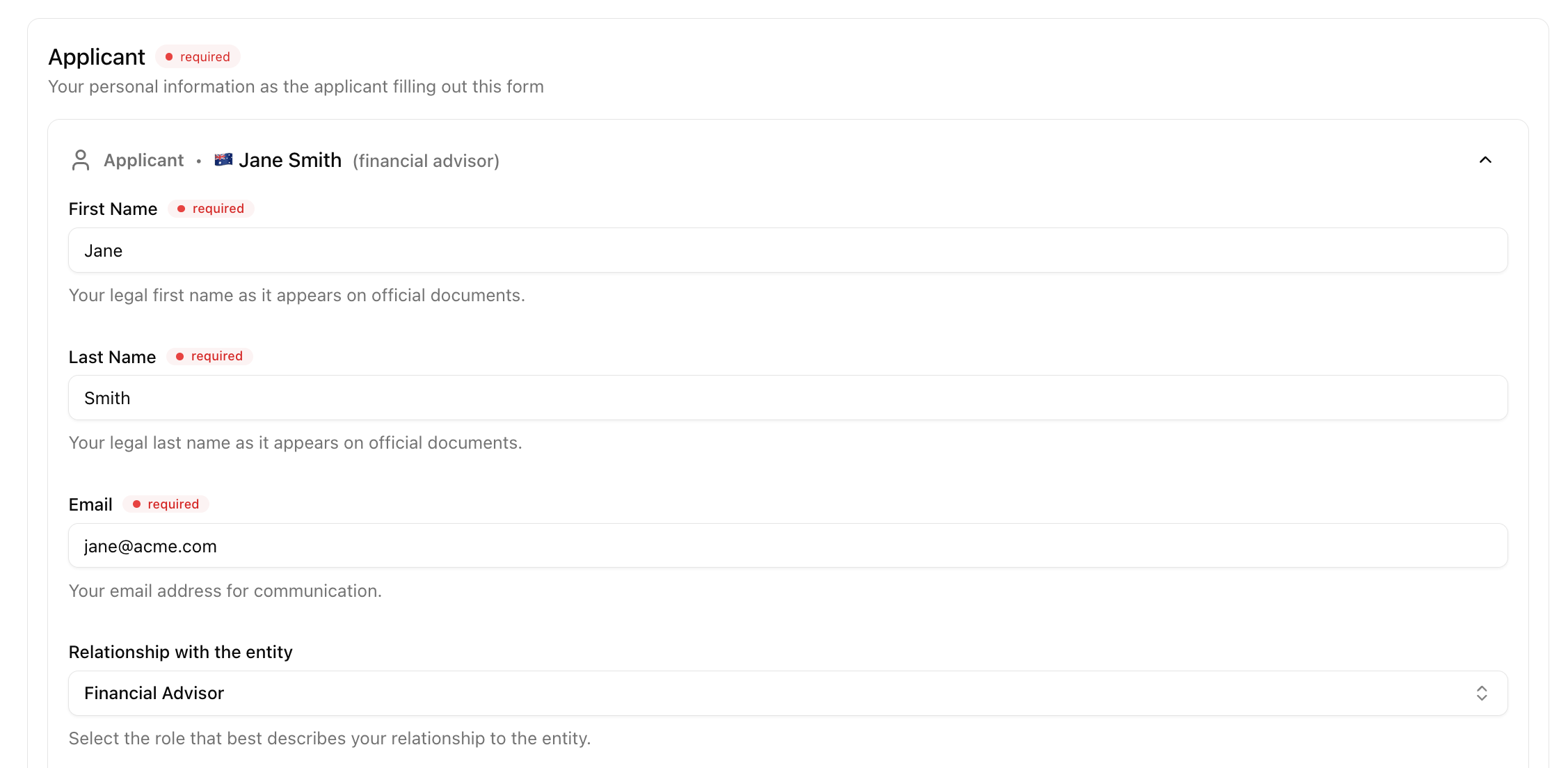
- First Name and Last Name: Your legal names as they appear on official documents (required).
- Email: Your email address for communication (required).
- Relationship with the entity: Select the role that best describes your relationship to the entity (e.g. Financial Advisor, Director).
- Provide Proof of Authorisation, if applicable. If you are not a director, shareholder, trustee, or partner of the entity for which you are submitting the form, upload a document proving your authorisation to act on behalf of the entity (accepted formats: PDF, DOC, DOCX, JPG, JPEG, or PNG, up to 25 MB). You can also add a note about the document, e.g. "Letter of authorisation signed by the board".
- Submit the form.
Step 3: Summary
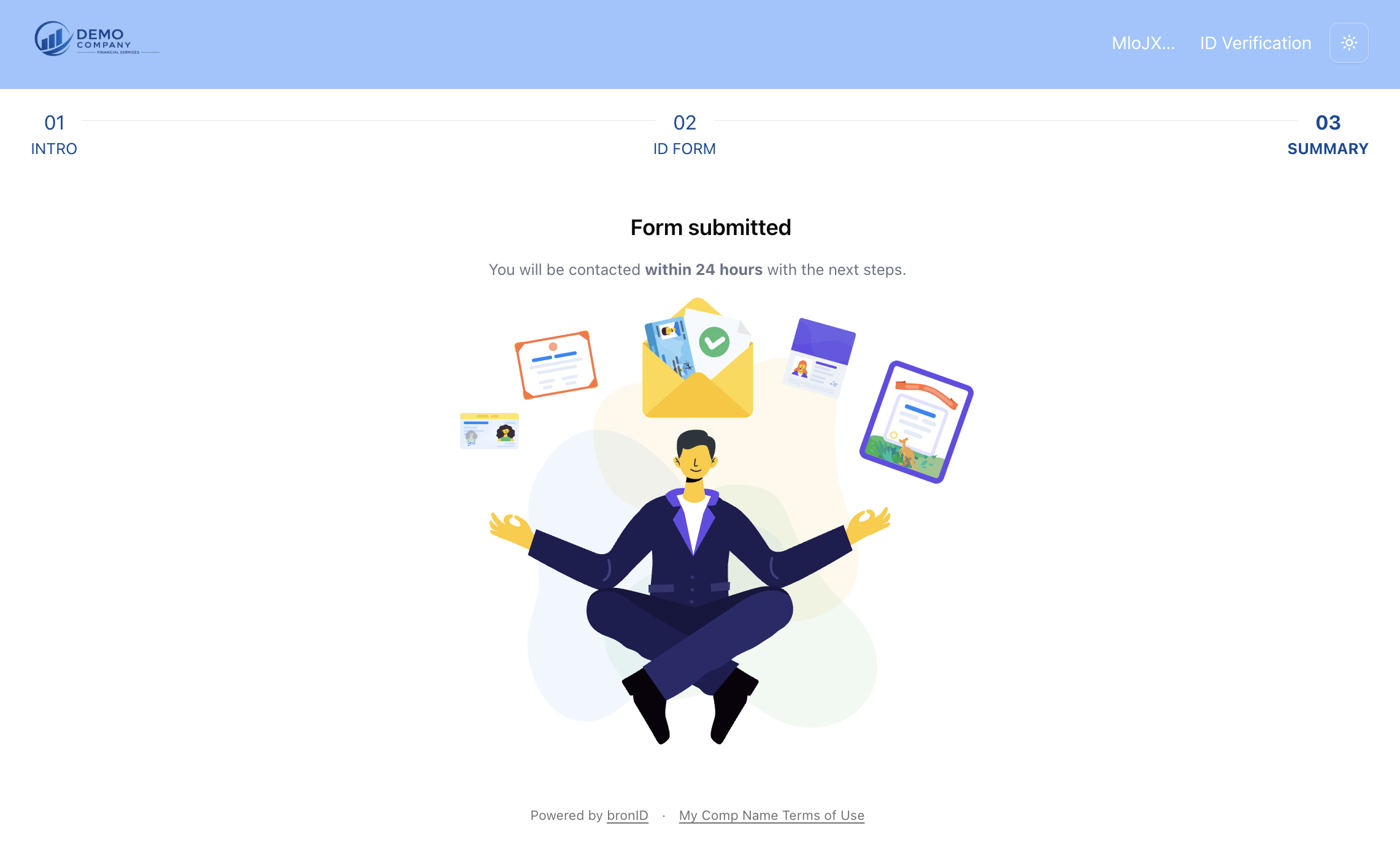
Once the form is submitted, you will see a Form submitted confirmation, and bronID will process the form. Most forms are processed and completed within 15 minutes; however, in some rare cases this process may take longer (e.g. 24+ hours), for example when government registries are under maintenance, when the entity is complex or has an offshore structure and the processing time of foreign registries may be longer, or when there are other issues with the processing.
Follow-up Information Requests (the process is not complete)
Once the initial form is submitted, the process is not over. Once the form is processed, your platform (the organisation that sent you the verification link) will contact you to let you know what actions are required to complete the verification. You can also open the same link as the initial form to see whether you need to provide additional information. If you do, you will be prompted to add the missing information. Click Add missing information.

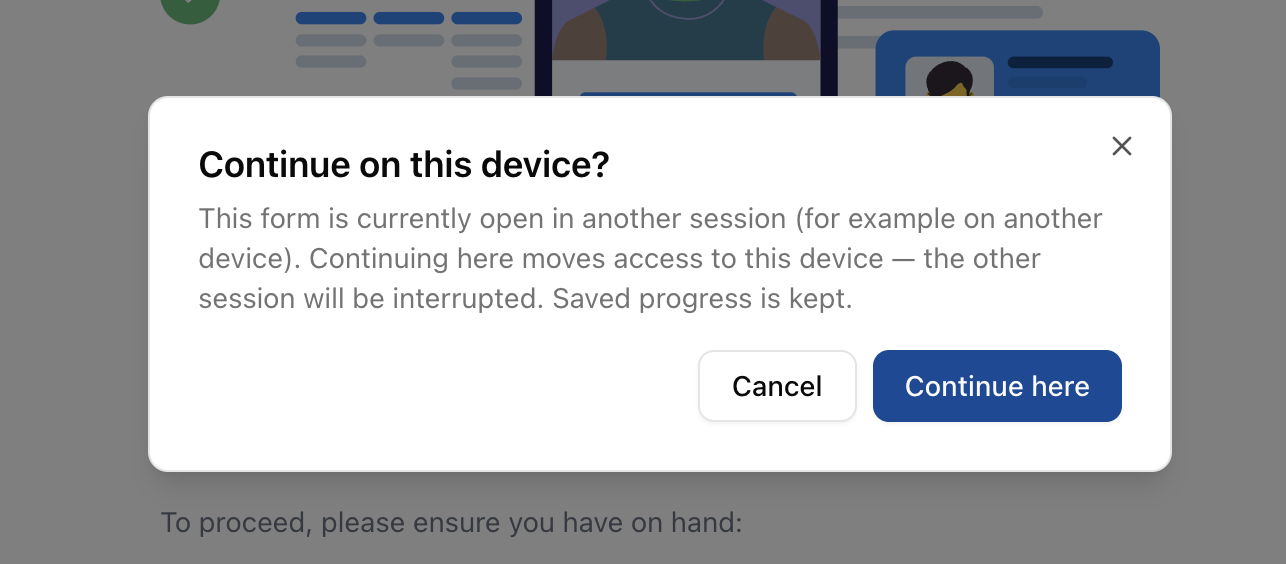
Please note that the form can only be opened in one browser at a time. If the form is already open in another session (for example, on another device), a Continue on this device? notice will appear. Continuing moves access to the current device, the other session will be interrupted, and your saved progress is kept.
Once you open the form, the required actions to complete the verification will be listed.
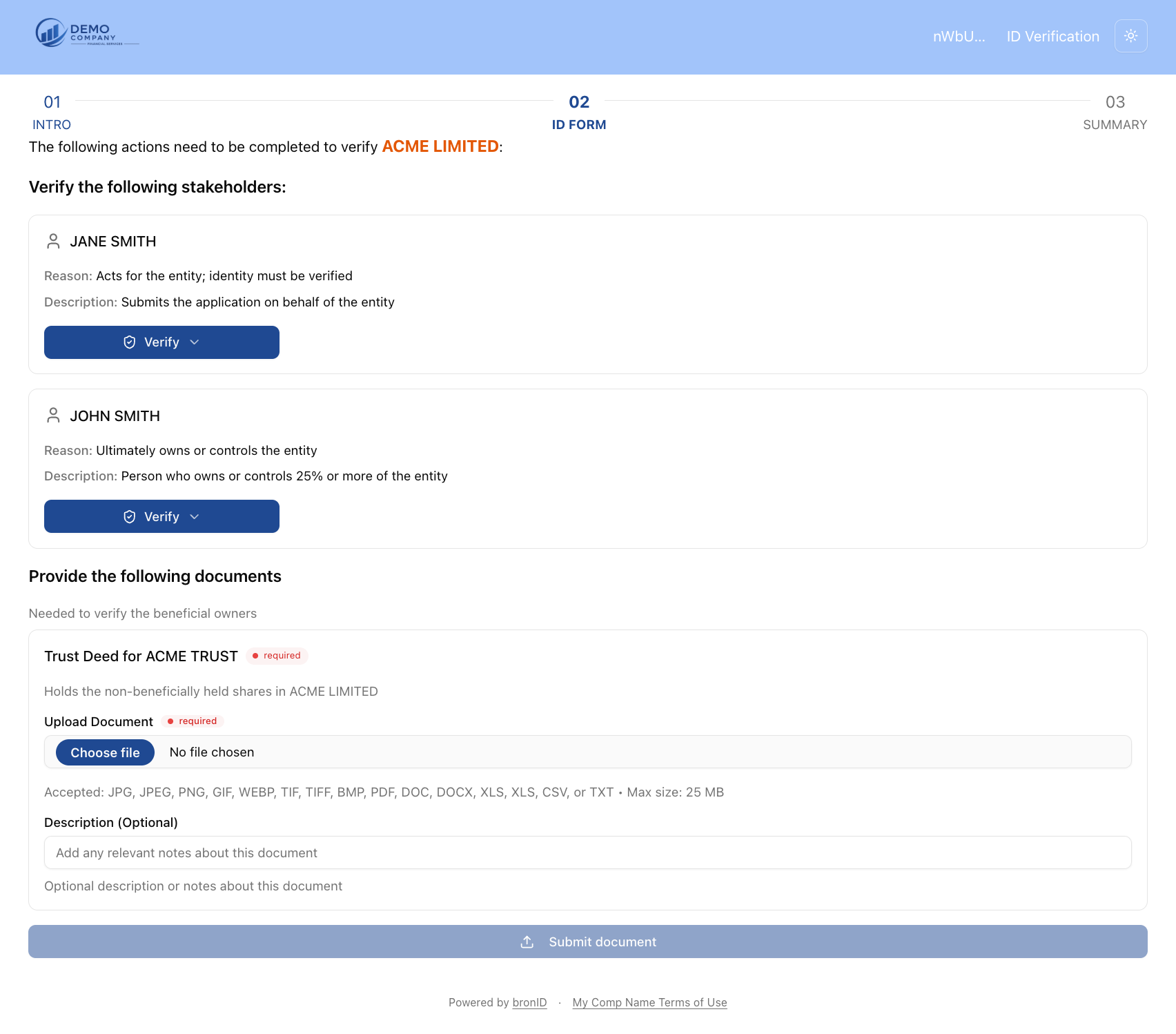
Typically, you will be requested to:
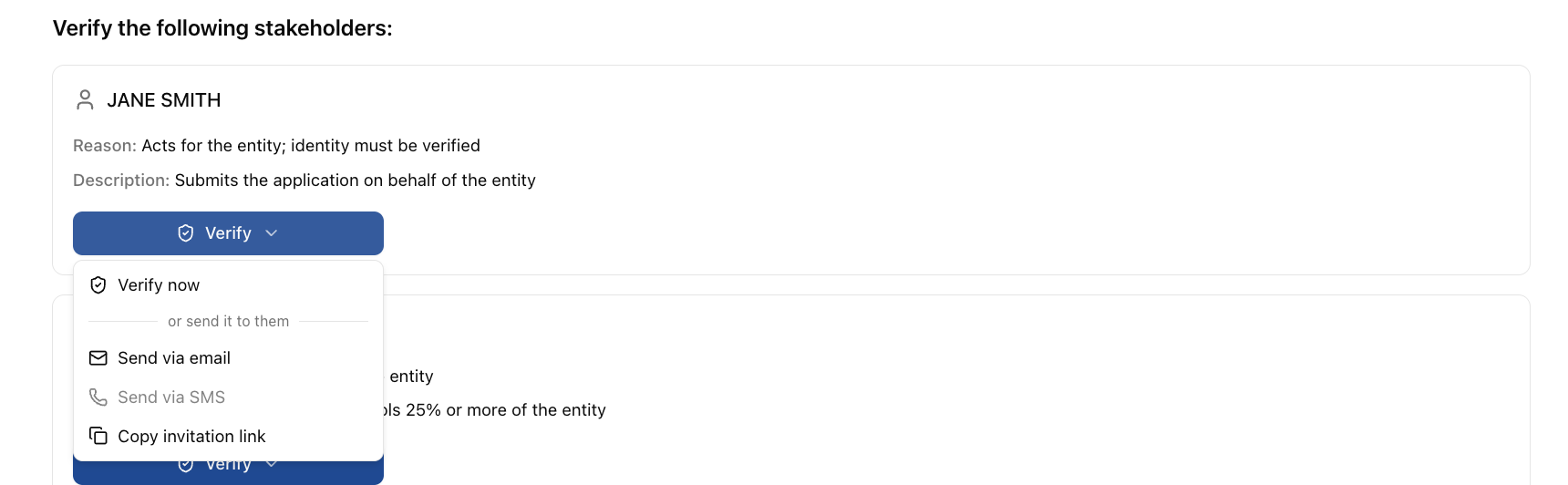
- Verify the identified stakeholders: These are individuals who are important stakeholders in the entity, such as the applicant, the beneficial owners, or similar. For each individual, the form shows the Reason (e.g. Ultimately owns or controls the entity) and a Description (e.g. Person who owns or controls 25% or more of the entity). You can complete the verification yourself by clicking Verify and selecting Verify now, or you can send the verification link to the relevant individual using the options under "or send it to them": Send via email, Send via SMS, or Copy invitation link to share it however you prefer.
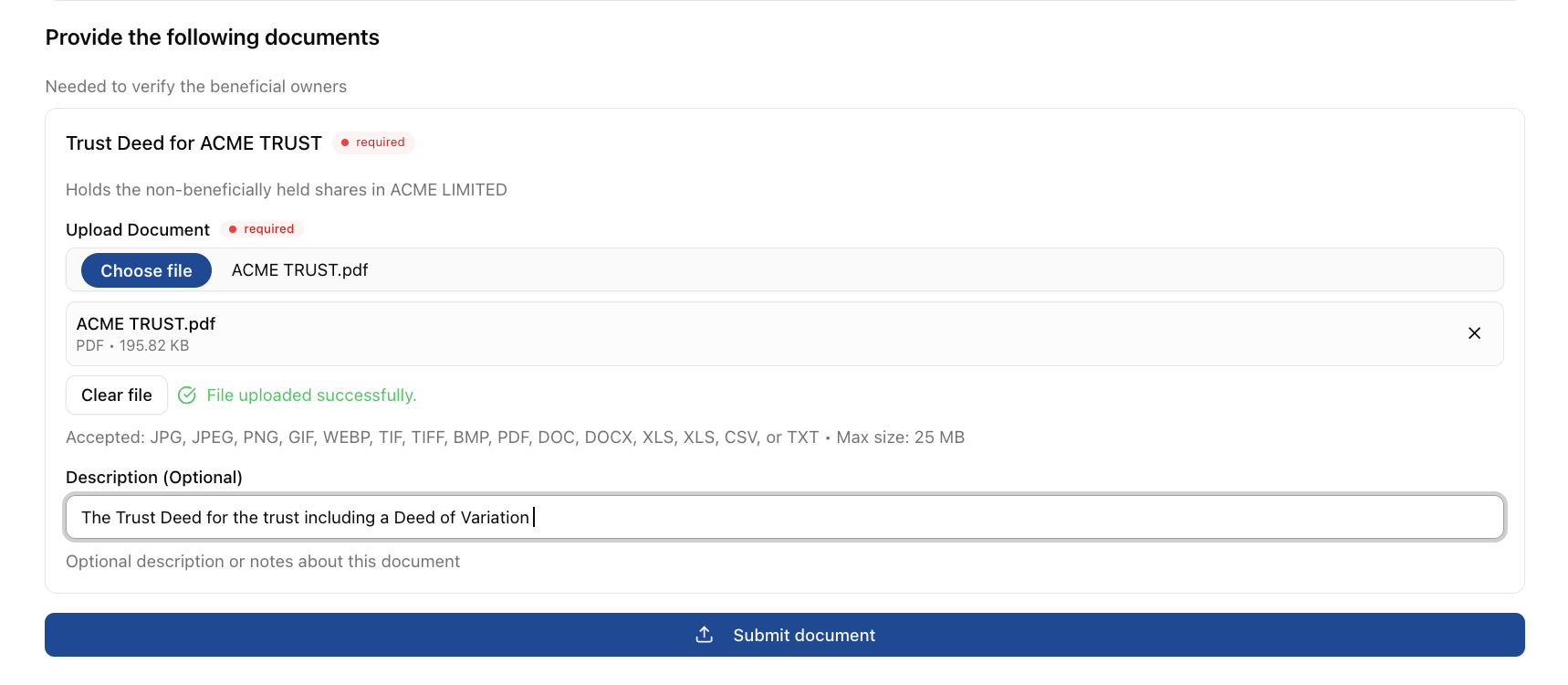
- Provide the requested documents: Upload the requested document (e.g. a Trust Deed) by clicking Choose file (accepted formats: JPG, JPEG, PNG, GIF, WEBP, TIF, TIFF, BMP, PDF, DOC, DOCX, XLS, CSV, or TXT, up to 25 MB). You can optionally add a description, e.g. "The Trust Deed for the trust including a Deed of Variation". Once the file has uploaded successfully, click Submit document.
Once all of the actions are completed, the form will go back to processing, and if everything was completed correctly, the entity will be verified. If there is still information missing, it will be requested on the same link.


