

In some cases, bronID will put the submission in an info status. This means that you need to provide additional information so the verification can be completed.
To provide the required information, follow the steps below:
- Log into your bronID Portal account.
- In the left-hand menu, under ID Verification, go to Results.
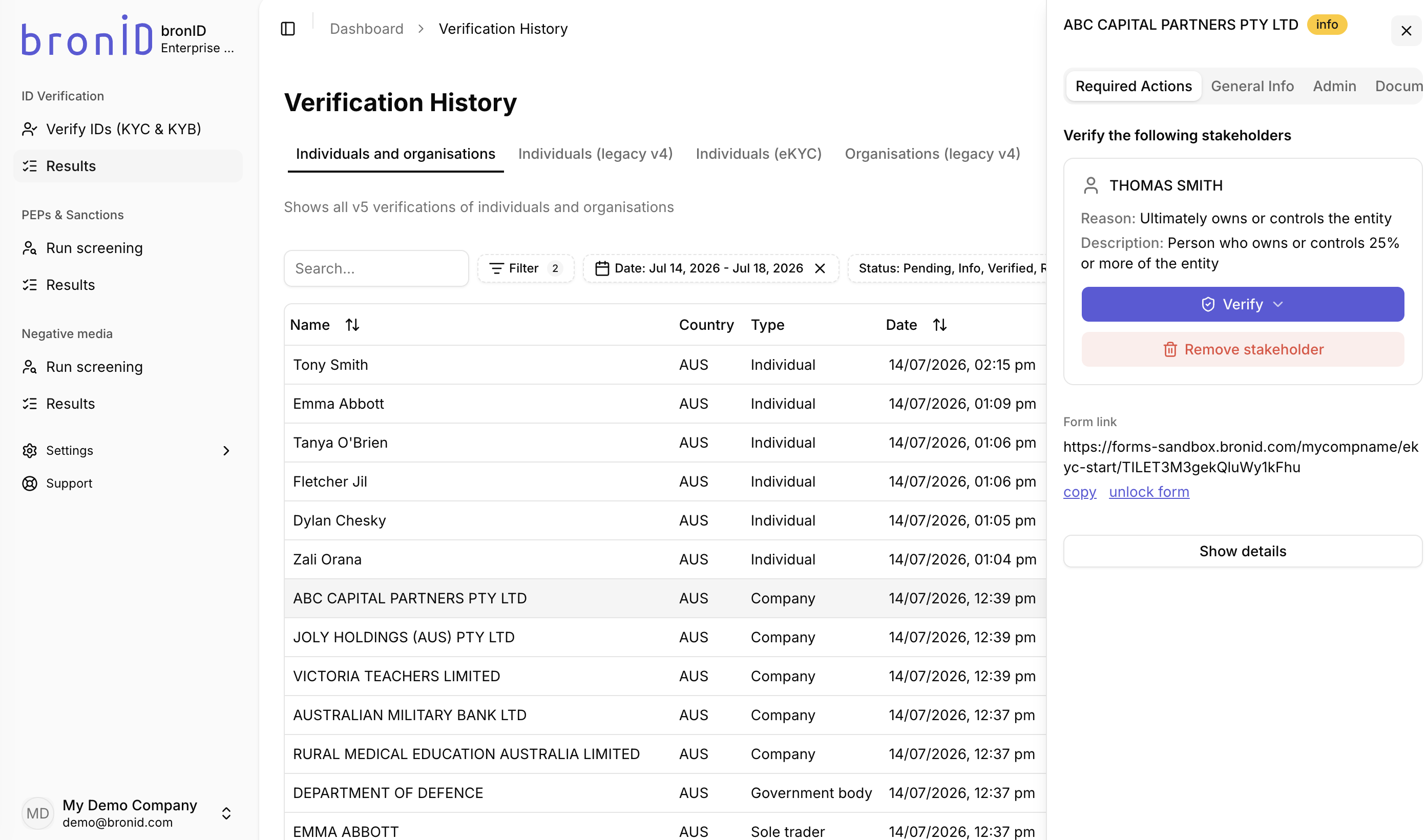
- Click on the organisation which is in the info status.
- In the right-hand slider, open the Required Actions tab. Here, bronID will list all the actions you need to perform in order to complete the verification.
Commonly required actions:
- Verify stakeholders: A likely scenario is for bronID to request that you verify the identified UBOs of the organisation. You can:
- Click Verify to verify the stakeholder directly.
- Click Remove stakeholder if the stakeholder is not applicable.
- Use the Form link to have the stakeholder complete the verification themselves. You can copy the link and send it to them, or unlock form if the form needs to be reopened.
- Provide documents: bronID may also request that you upload documents to facilitate the verification process (e.g. a Trust Deed, Deed of Variation, or similar). To upload a requested document, click on the link with the name of that document in the Required Actions tab.
For each requested individual and document, bronID includes a Reason and a Description explaining why it has been requested. For example, for a stakeholder, the Reason may be "Ultimately owns or controls the entity" with the Description "Person who owns or controls 25% or more of the entity".
bronID may include guidance comments in the Notes tab to make the interpretation of the info request easier, such as the reason why a specific document or UBO was requested.
If you have access to one of our subscription options and have configured your White-label Forms, a White-label Form will be generated that includes the requested info actions. You can find this form in the right-hand slider, in the Required Actions tab, under Form link. You can copy the link and send it to the customer, and they can complete the actions themselves. If the form needs to be reopened, click unlock form.
Once the required actions are completed, the verification status will go to either pending or verified. You will receive an email, a notification in the Portal, and a webhook when the status is updated and goes to the next state.


