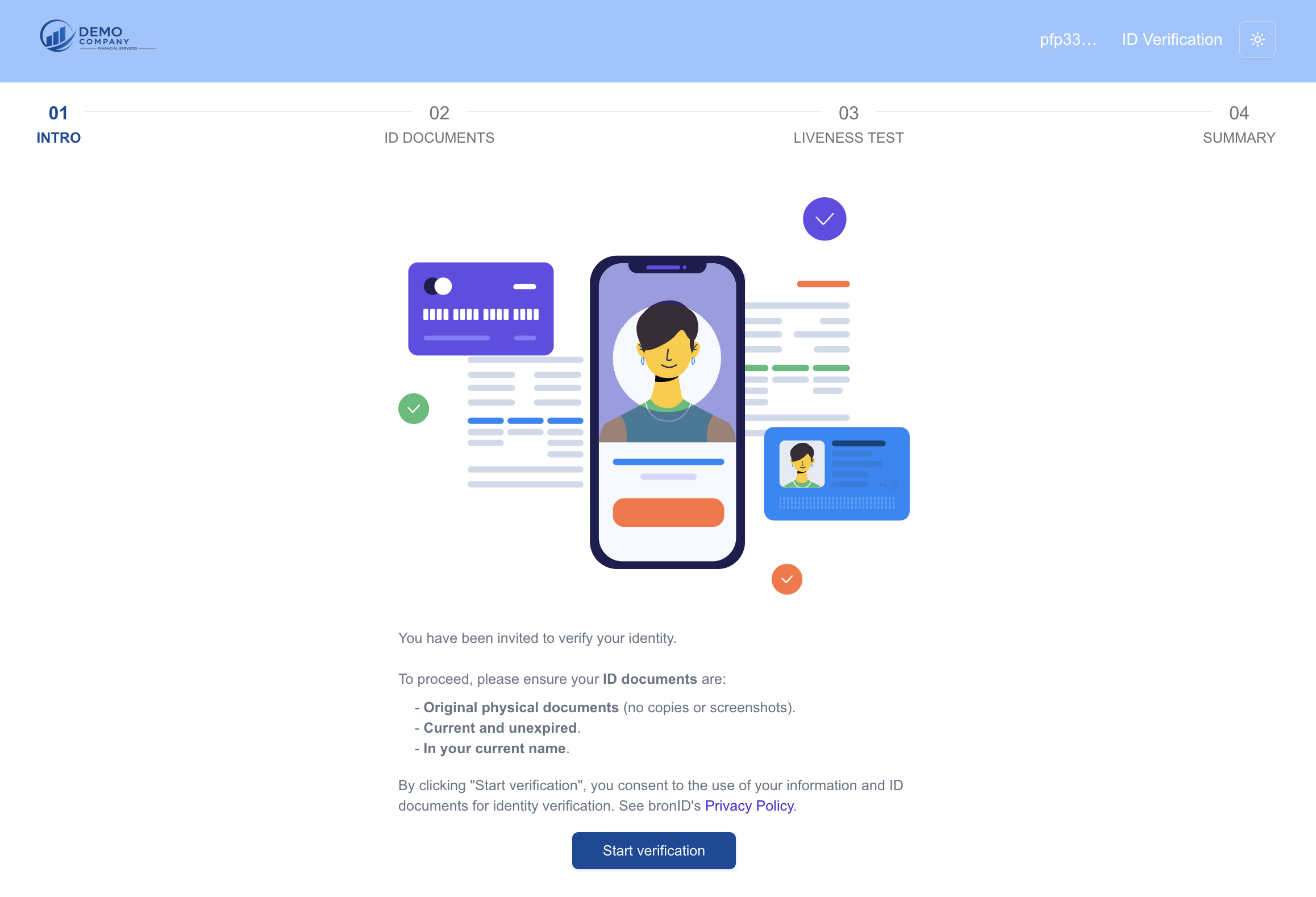
If you have received a bronID verification link, you have been invited to verify your identity. The eKYC form consists of four steps, shown at the top of the page: 01 Intro, 02 ID Documents, 03 Liveness Test, and 04 Summary. Please complete the form on a device with a camera (e.g. your mobile phone), as you will need to take photos of your documents and complete a liveness check.
Step 1: Intro
Before you begin, please ensure your ID documents are:
- Original physical documents (no copies or screenshots);
- Current and unexpired; and
- In your current name.
By clicking Start verification, you consent to the use of your information and ID documents for identity verification. See bronID's Privacy Policy for details.
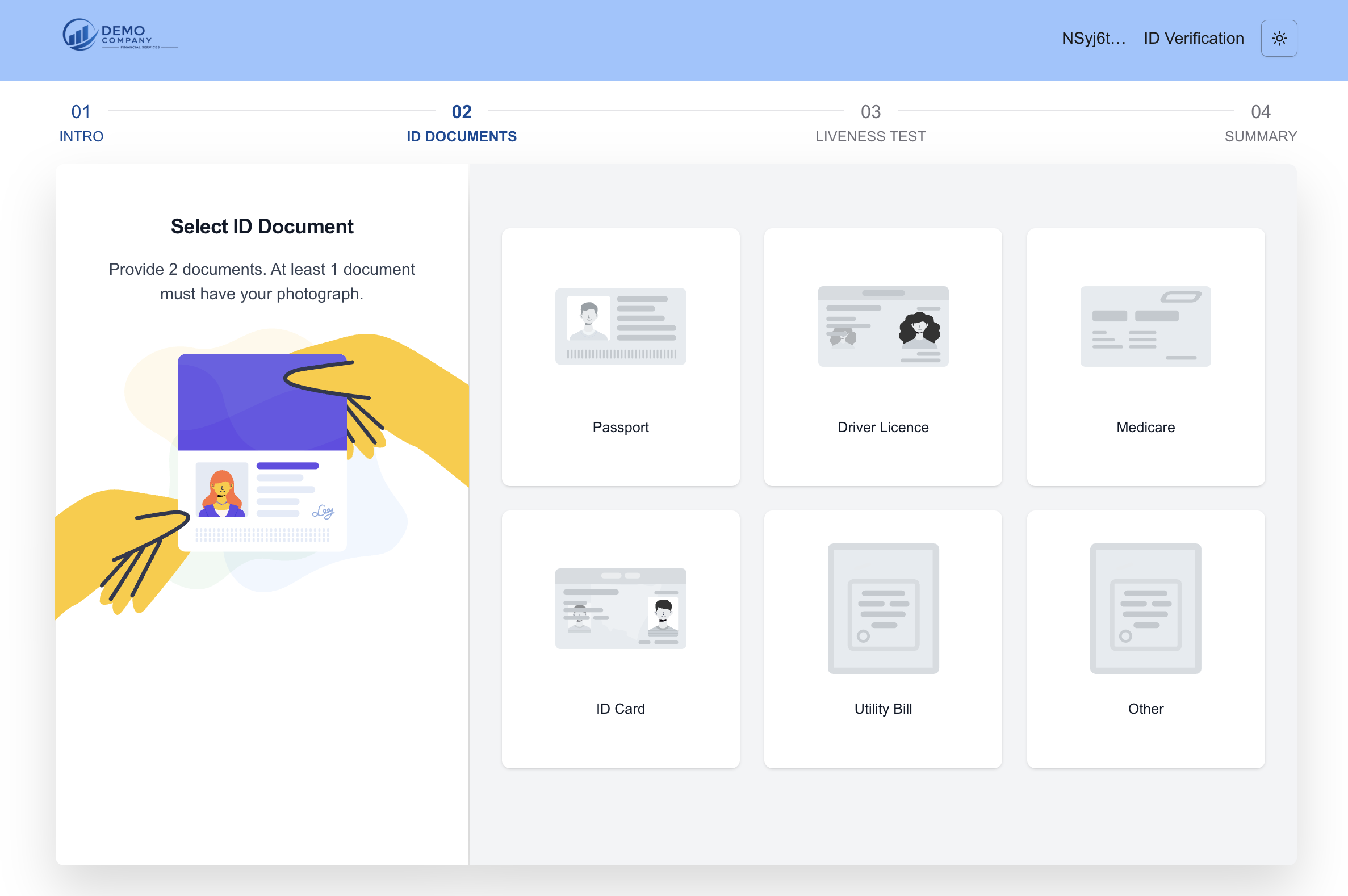
Step 2: ID Documents
1. Select your ID documents. You must provide 2 documents, and at least 1 document must have your photograph. The available document types include Passport, Driver Licence, Medicare, ID Card, Utility Bill, and Other.
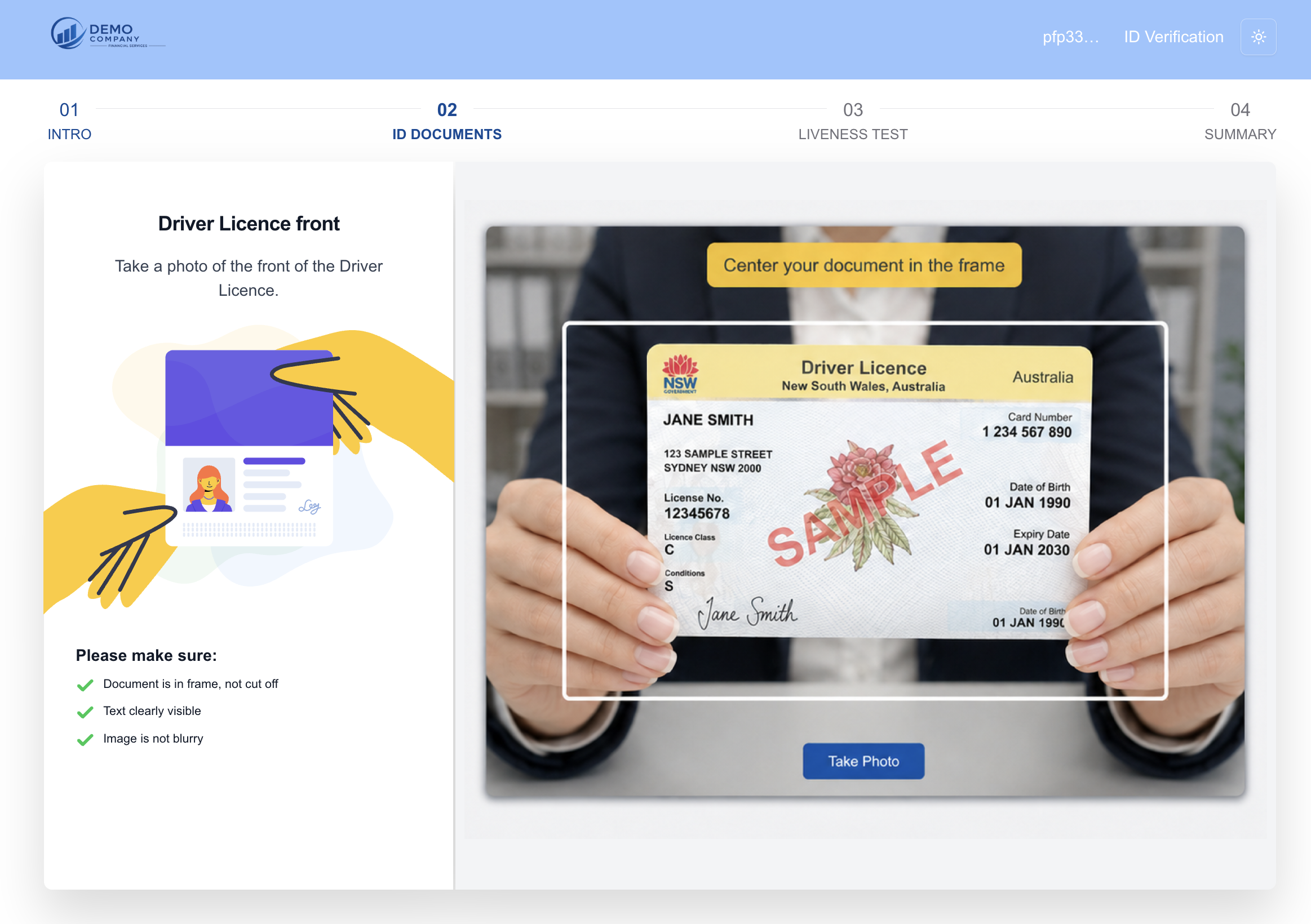
2. Take a photo of each document. Centre your document in the frame and click Take Photo. Before taking the photo, please make sure:
- the document is in the frame and not cut off;
- the text is clearly visible; and
- the image is not blurry.
- Confirm the photo. After taking the photo, you will be asked: "Is the document text clear and legible?" If the photo is clear, click Confirm. If not, click Retake and take the photo again. Make sure you can read the text on the photo. If you cannot read it, it is likely that the verification will be rejected even if you manage to submit.
- Repeat for the second document (and the back of a document where requested).
Please note that the form checks your documents as you upload them. A notice will appear if a document is not readable, is expired, or there are any other issues detected (e.g. Document is not readable. Click to resubmit.); click on it to take the photo again. If your documents do not satisfy the eKYC requirements, a Requirements not met notice will list what is missing, for example, "At least 1 photo ID document must clearly show your name" or "At least 2 documents must clearly show your name". Provide documents that meet the listed requirements to continue.
Step 3: Liveness Test
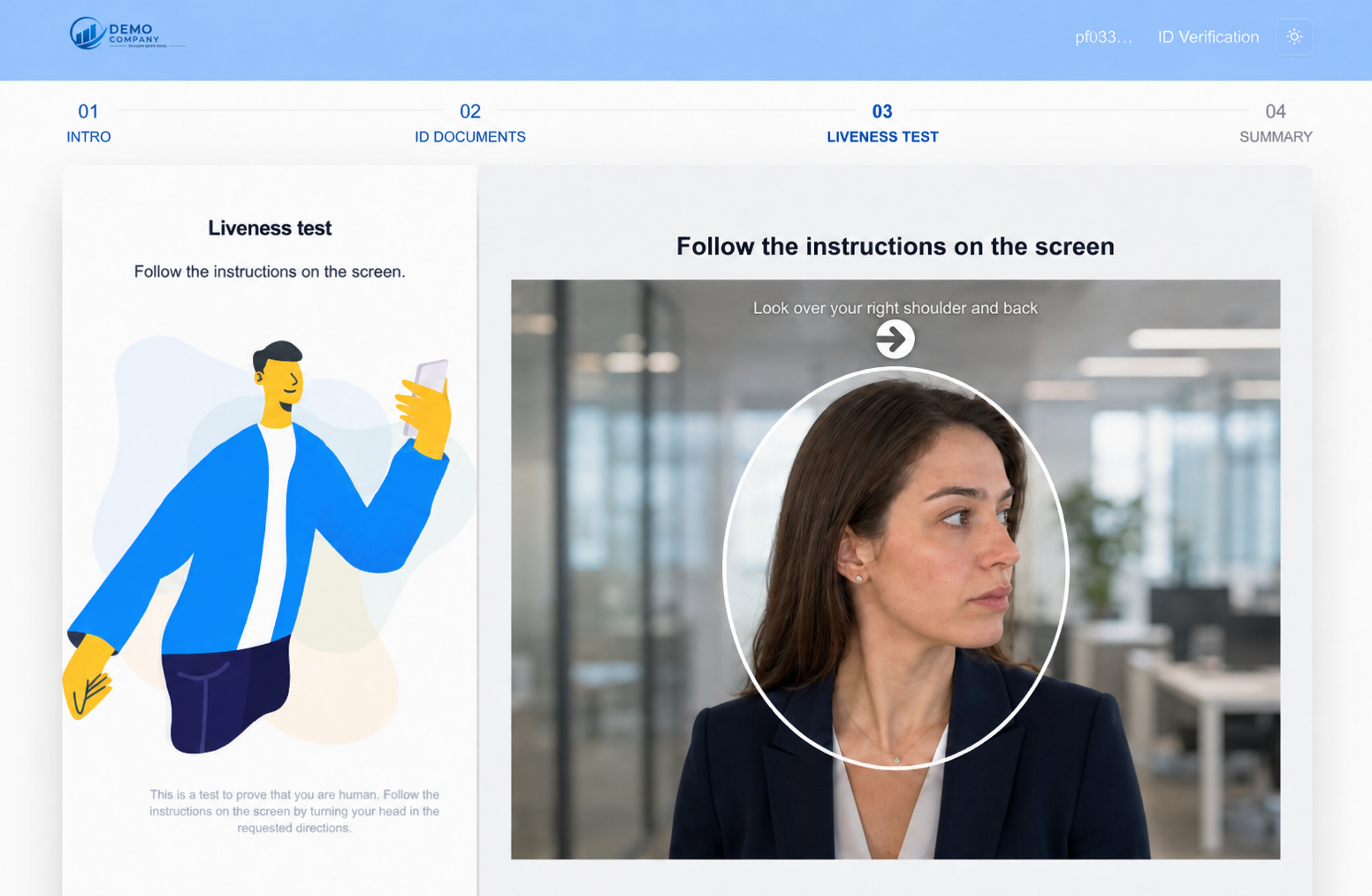
The liveness test is a test to prove that you are a live person. Follow the instructions on the screen by turning your head in the requested directions (e.g. "Look over your right shoulder and back"). Keep your face within the on-screen frame until the test is complete.
Step 4: Summary
1. Confirm your details. In the Applicant Information section, the details extracted from your documents will be displayed, including your First name, Middle name, Last name, Date of birth, Country, Residential address, and Email address. Please review each field carefully. Click Update next to a field to correct it, or Add to include a missing detail (e.g. your middle name). If you have a middle name, please make sure it is included.
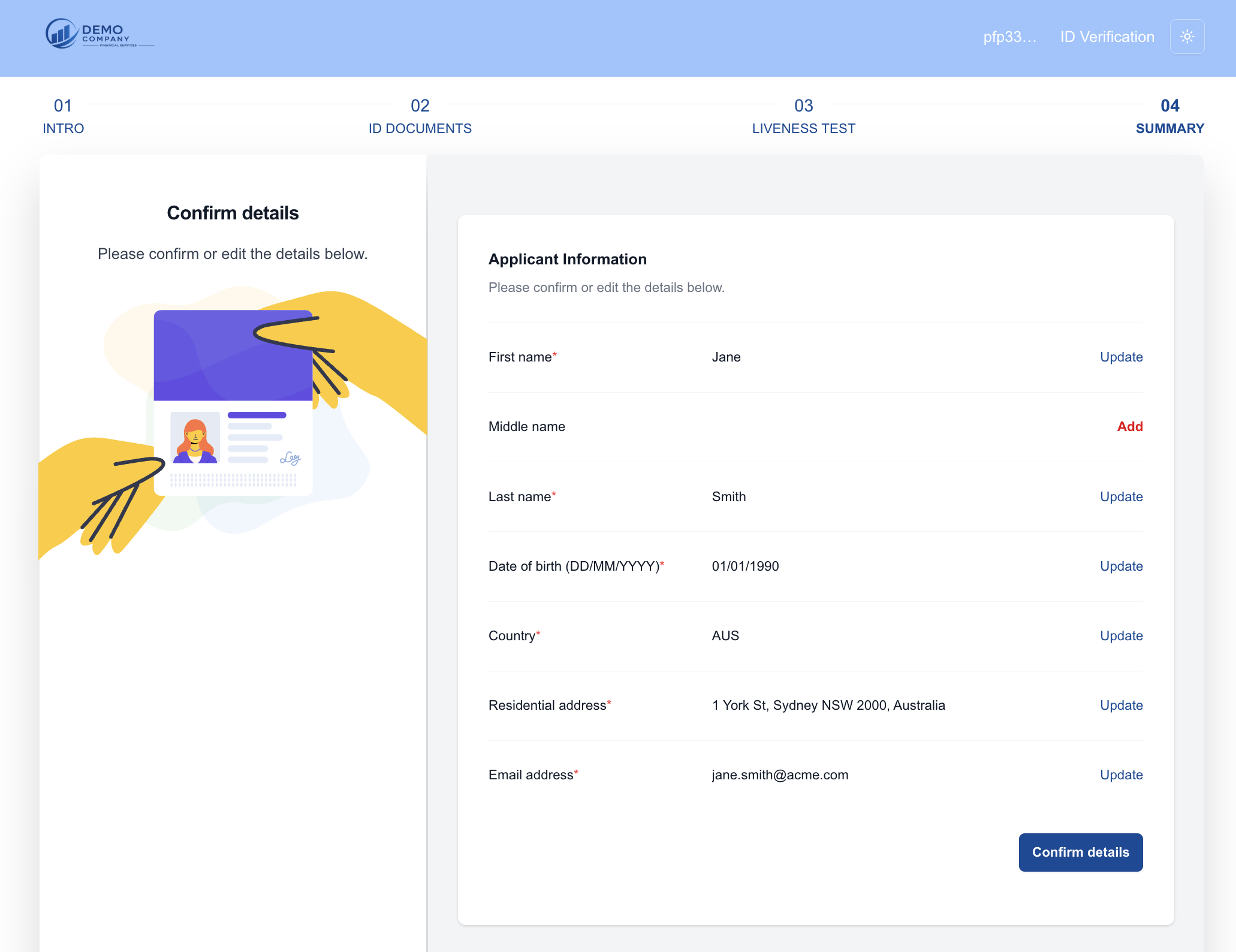
2. Click Confirm details.
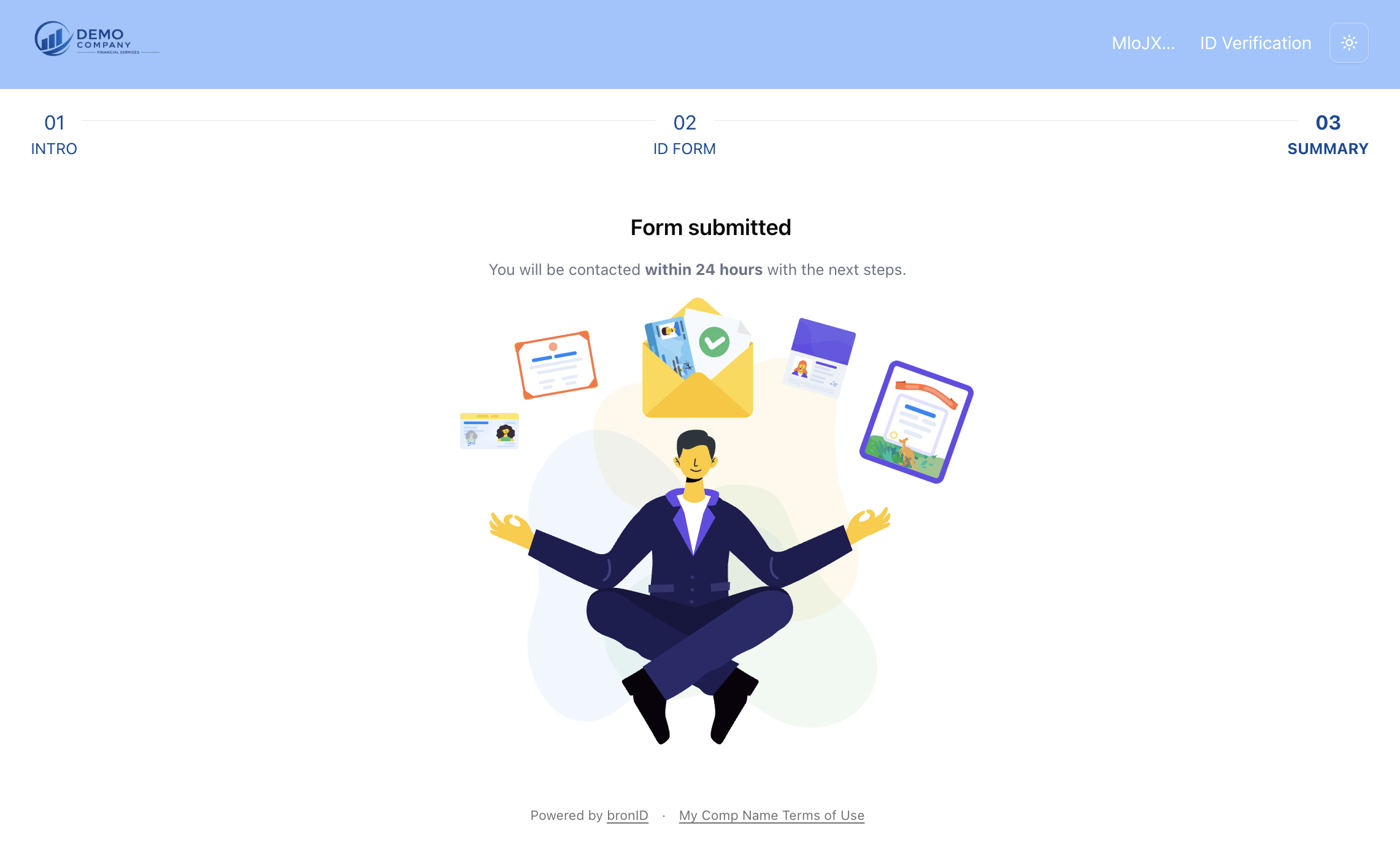
3. Once the form is submitted, you will see a Form submitted confirmation, and your verification will be processed. This usually takes several minutes, but it may take longer depending on the quality of the images.