Once you have submitted a KYC or KYB verification, you can view its status and details on the Results page. To access your results, follow the steps below:
- Log into your bronID Portal account.
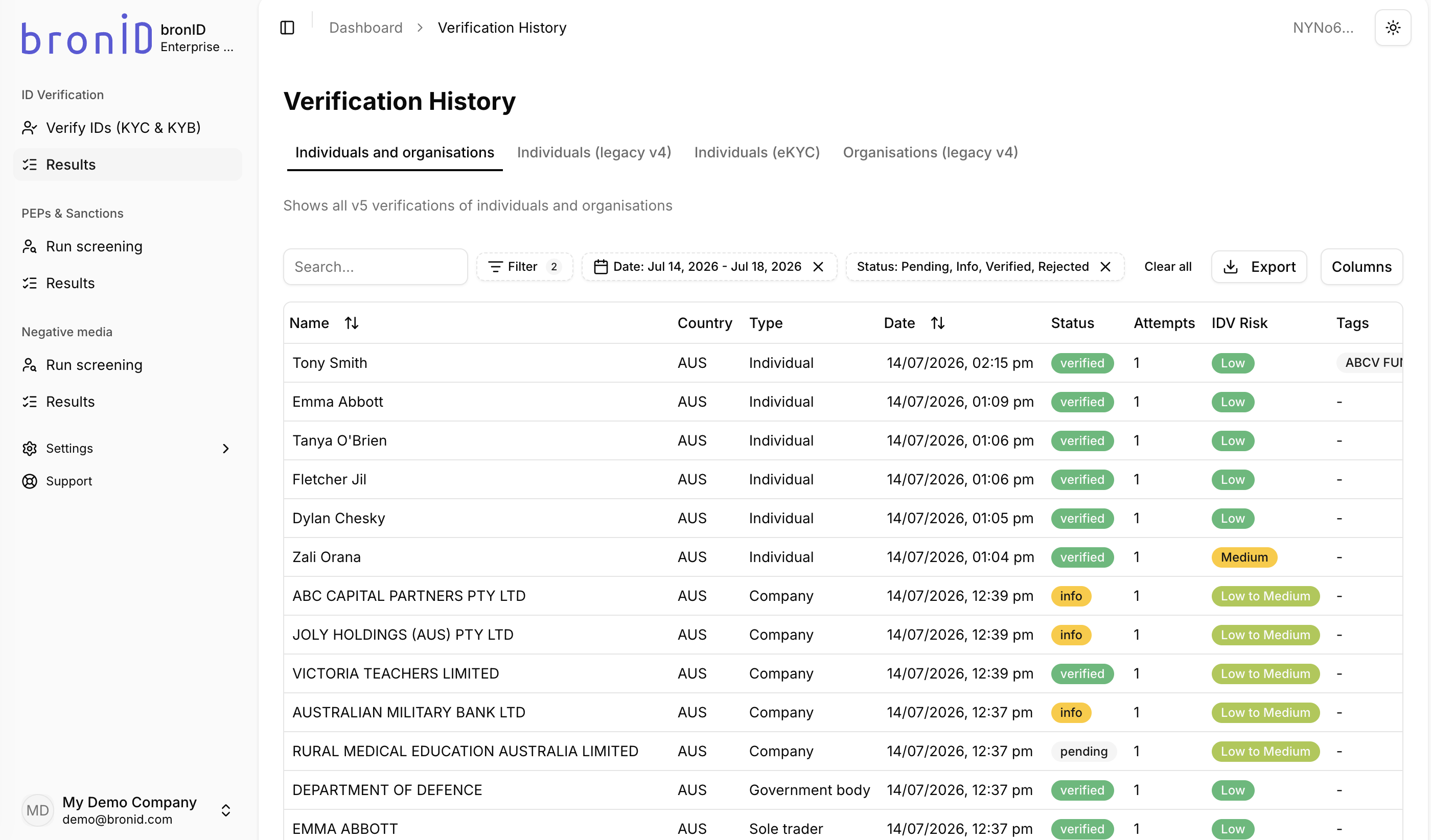
- In the left-hand menu, under ID Verification, go to Results. The Verification History page will open.
- Select the relevant tab. The Individuals and organisations tab shows all v5 verifications of individuals and organisations. The remaining tabs (Individuals (legacy v4), Individuals (eKYC), and Organisations (legacy v4)) show verifications processed under the legacy v4 procedures.
- Use the available tools to find a specific verification:
- Search: Search for a verification by name.
- Filter: Apply filters to narrow down the results.
- Date range: Filter the results by submission date (e.g. Jul 01, 2026 - Jul 31, 2026).
- Status: Filter by verification status (e.g. Pending, Info, Verified, Rejected).
- Clear all: Remove all applied filters.
- Export: Download your results.
- Columns: Customise which columns are displayed in the table.
- Review the results table. Each verification displays the following information:
- Name: The name of the individual or organisation.
- Country: The country of the verification (e.g. AUS).
- Type: The entity type (e.g. Individual, Company, Sole trader, Government body, Association).
- Date: The date and time of the submission.
- Status: The current verification status (e.g. verified, info, pending).
- Attempts: The number of verification attempts. The attempts include submission attempts for verifying individuals or stakeholders.
- IDV Risk: The identity verification risk score (e.g. Low, Medium, High).
- Tags: Any tags attached to the submission.
Checking the Results of a Particular Submission
To check the results of a particular submission, follow the steps below:
- Click on the submission in the results table.
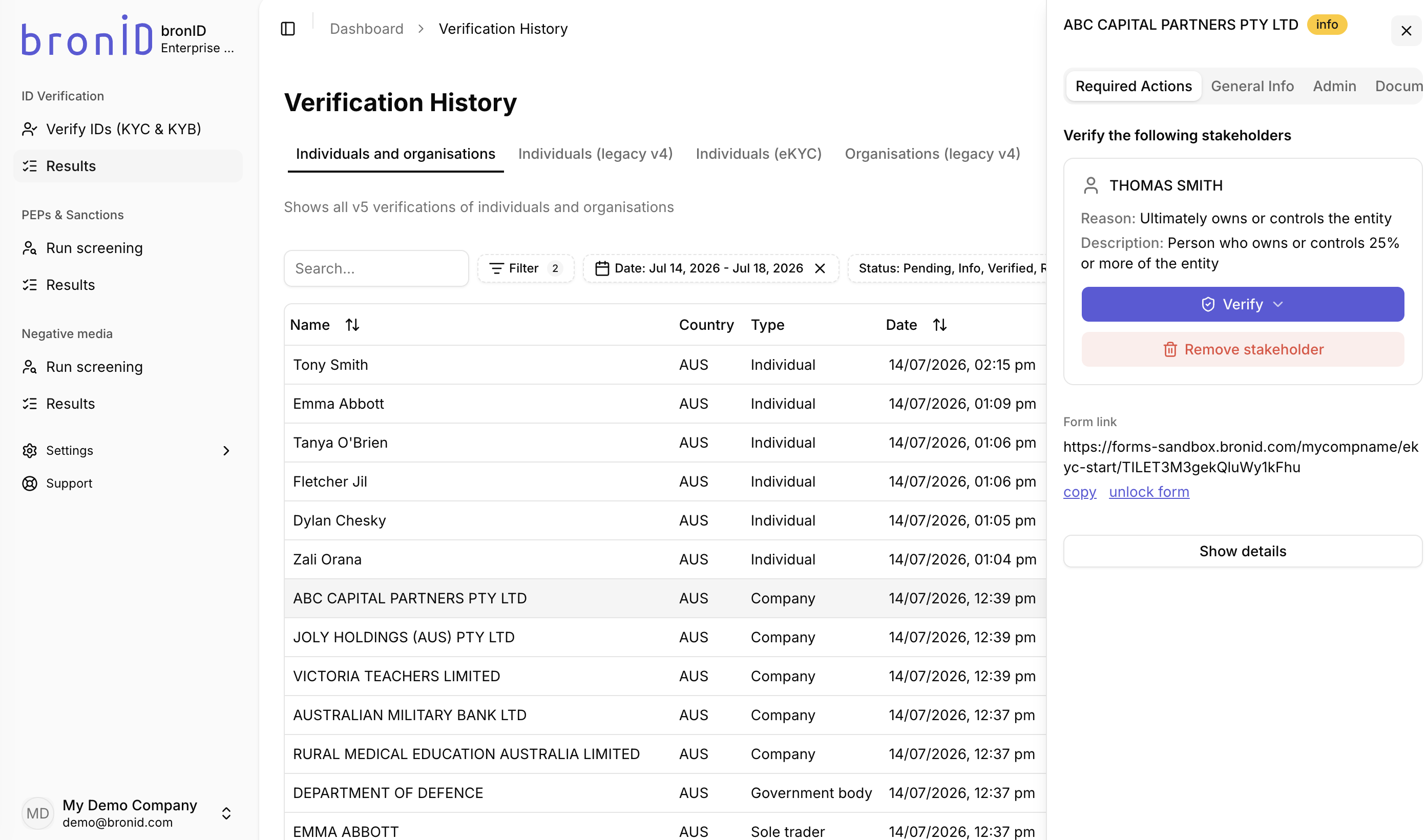
- A slider will open on the right, showing general information about that submission, including the Name, Country, IDV Risk, Type, Sub Type, Status, Submitted and Updated dates, Tags, and Applicants.
- If the submission is in the info status, a Required Actions tab will appear as the first tab in the slider, showing the outstanding actions needed to complete the verification. For example, for a KYB verification, you may be asked to verify the following stakeholders.
- In the right slider, you have quick access to the following tabs:
- General Info
- Admin
- Documents
- Notes
- From the General Info tab, you can also edit the IDV Risk and the Tags of the submission directly.
- For more detailed data, click Show details at the bottom of the slider.
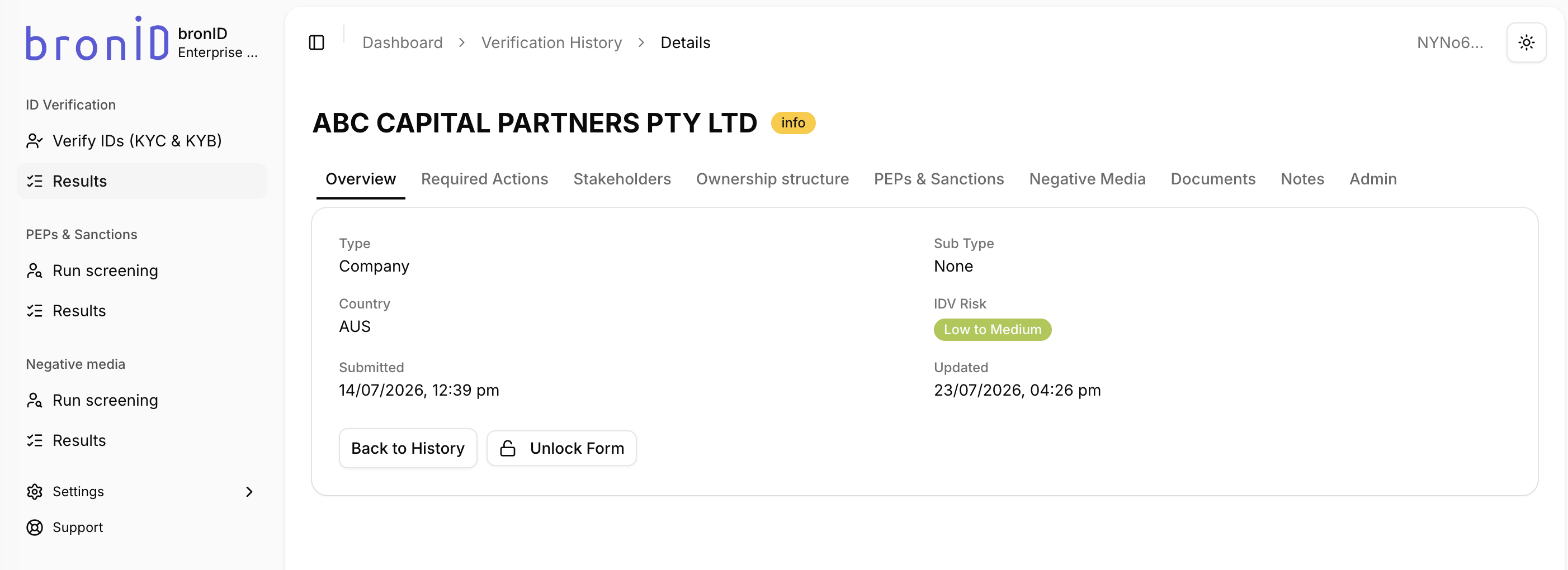
- Depending on the entity type, you will see the following tabs:
- KYC (individuals): Overview, Attempts, PEPs & Sanctions, Negative Media, Documents, Notes, and Admin.
- KYB (organisations): Overview, Stakeholders, Ownership structure, PEPs & Sanctions, Negative Media, Documents, Notes, and Admin.
- Click on each tab to find the relevant information.